Migrate from Vercel

Your Vercel project.
A new home.
Bring your Vercel application to OpenShip Cloud or your own infrastructure. Import its GitHub source and settings, review its dependencies, and choose where its data lives.
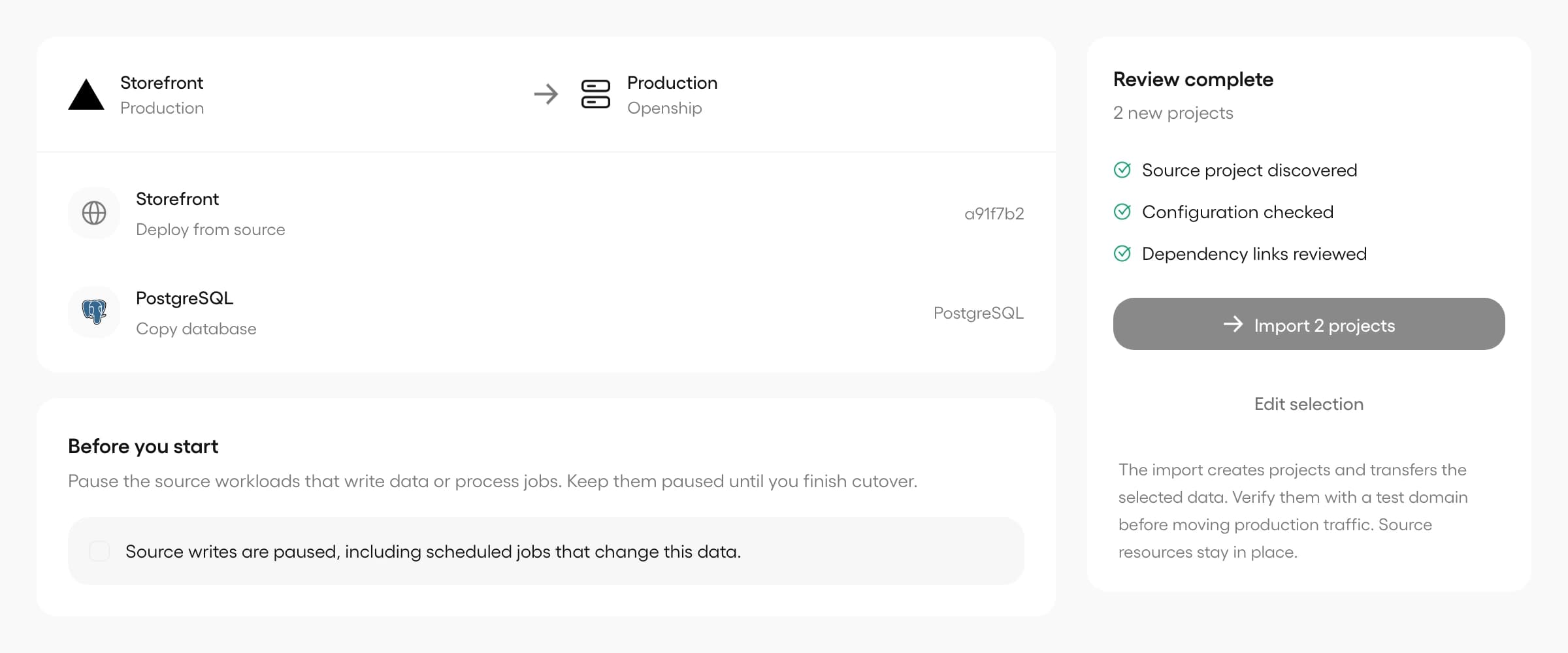
What comes with you
Review your application, its configuration and its data in one import.
The source you deployed
Import the GitHub repository and deployed commit from the latest ready deployment in your selected production or preview environment.
Build and environment settings
Review supported build, root and output settings with exportable variables. Re-enter Secret or Sensitive values before deploying.
A choice for PostgreSQL
Keep your external database connection, or copy its configured database using a logical backup from a direct, public PostgreSQL URL with TLS.
Your custom domains
Review discovered domains and verify the app at its destination. You choose when to update routing; provider-owned vercel.app addresses stay with Vercel.
From connection to cutover
Start in New project → Import existing project. Review before anything moves.
Connect Vercel
Open New project → Import existing project → Vercel. Test your connection, then choose the project and its production or preview environment.
Review settings and data
Check repository access, build settings and variables. Choose whether to keep an external PostgreSQL connection or copy the database, then select a destination.
Check and import
Use Check import to resolve blockers before starting. OpenShip uses its normal build and deployment flow. Pause database writers before any PostgreSQL copy.
Test before switching
Verify application routes, sign-in, background work and data on a test domain. Update your custom domains when ready and retire Vercel resources separately.
Choose what happens to your database
Plan the transfer around the data your application needs to keep.
An application import does not have to move its database. You can keep a reachable external PostgreSQL connection and manage the application in OpenShip.
To copy PostgreSQL, supply its major version and a direct public connection URL with TLS and export permissions. Pause external writers yourself and keep them paused through cutover. The logical copy includes the configured database, not other databases or server-wide roles.
Vercel Blob, Edge Config, provider-specific functions and other external storage need separate handling. Review those dependencies before moving: importing source and settings does not recreate the Vercel platform or copy a Vercel filesystem.
Talk through your migrationBefore you move
Access, compatibility and the final switch.
How do I connect my Vercel account?
Use a saved connection, authorize your account when OAuth is configured on your OpenShip installation, or add an API token. Team-scoped tokens need the team ID. Test the connection before choosing a project. Private GitHub repositories also need GitHub access in OpenShip.
Will my app work without changes?
Applications with supported build settings can use the normal OpenShip deployment flow. Review any dependence on Vercel-specific functions, APIs or storage first. Non-GitHub sources and unsupported configuration need changes before import; missing secrets must be supplied again.
Does the import move my production traffic?
No. Test the imported app and its data first, then move your custom domains through Domains & Routes. Your Vercel deployment remains at the provider until you retire it. If you copy a database, plan a maintenance window and keep writers paused until cutover.
Where will the imported application run?
Choose an eligible managed Cloud destination or a connected server in Desktop or self-hosted OpenShip. The normal destination permissions and capacity checks apply. Imported projects keep the usual deployment logs, domains and runtime controls; automatic deployment on Git push stays off until you enable it.
Put it to work.
Start on OpenShip Cloud or deploy on your own infrastructure.