Migrate from Railway

Your Railway project.
A new home.
Move your Railway project to OpenShip Cloud or your own infrastructure. Review its services, copy persistent volumes, and verify the new deployment before switching your domains.
What comes with you
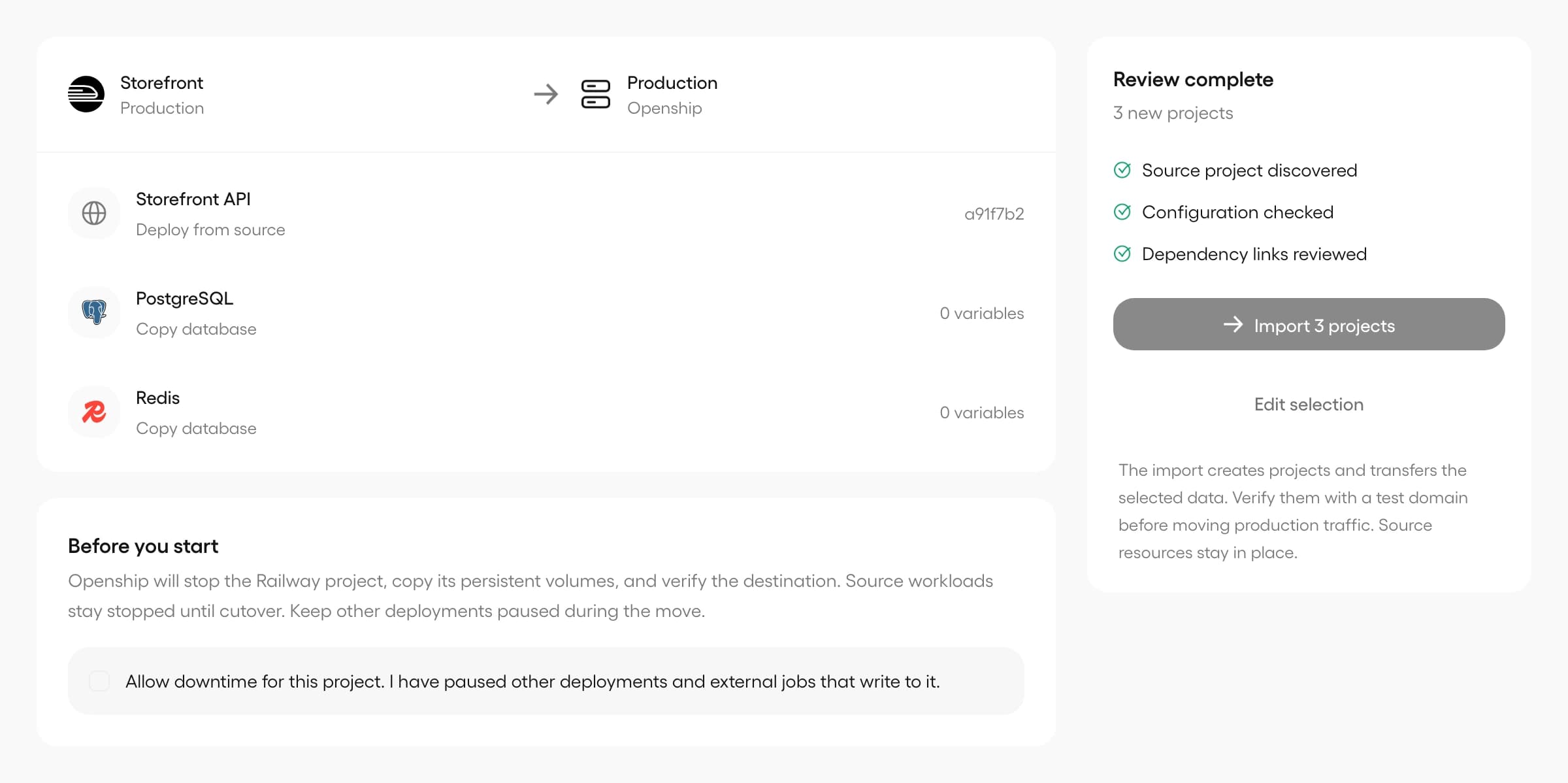
Review your application, its configuration and its data in one import.
Your services, together
Import the complete selected environment into one OpenShip project. Its services stay together, using compatible GitHub sources or portable registry images.
The data on your volumes
Copy database directories, queues, SQLite and uploaded files through the same volume transfer. Keep compatible images and storage formats.
Connections between services
Railway private addresses resolve through service names on the project's private network. Credentials, database names and connection options stay with them.
Settings you can review
Bring exportable variables and supported build, health check and restart settings. Re-enter sealed secrets and review domains before import.
From connection to cutover
Start in New project → Import existing project. Review before anything moves.
Connect Railway
Open New project → Import existing project → Railway. Choose a saved connection or add one, test access, then select a project and environment.
Review the whole environment
Check every service, supply missing secrets and choose your Cloud plan or connected server. Check import shows what needs attention before you proceed.
Pause, copy and deploy
Allow a maintenance window and pause external automation. OpenShip stops the source environment and copies all selected volumes before starting destination services.
Verify, then move traffic
Follow the saved migration, check health and data, and add a test domain. Move your custom domains when ready, then retire the old resources yourself.
Your volumes move with your apps
Plan the transfer around the data your application needs to keep.
Railway imports copy persistent volumes while the source services are stopped. Files, database directories, ownership, permissions and symlinks transfer into new destination volumes. All copies finish before destination applications start.
This preserves the stored data without choosing a separate export tool for each database. It requires compatible application images and data formats: a migration is not a database version upgrade, and files outside persistent volumes are not copied.
The source configuration is restored after copying and its services remain stopped for cutover. Source volumes and domains are not deleted. If the import fails, recovery stops the destination workloads it started before restoring the source; interrupted or changed environments can require review.
Talk through your migrationBefore you move
Access, compatibility and the final switch.
Do I need an API token?
Choose an existing Railway connection or authorize your account when OAuth is configured on your OpenShip installation. API tokens are also supported. The connection needs access to the project and permission to stop and deploy services, update configuration, register a temporary SSH key and read storage. A read-only token cannot move persistent data.
Can every Railway project move unchanged?
Review checks compatibility before import. Source-built services must share a GitHub repository and deployed revision. Scheduled jobs, multiple replicas, pre-deploy commands, multiple public ports and unsupported build settings need changes first. Unresolved connections and dependency cycles also need attention. Sealed variables must be re-entered; sleeping services run continuously after import.
Will my application be offline?
Plan downtime for the selected Railway environment while its volumes copy and the destination starts. Pause external jobs and deployment automation as well. Transfer time depends on your data and connection. OpenShip does not switch public DNS or remove your source resources automatically.
Can I move to Cloud or my own server?
Yes. The import uses OpenShip’s normal destination picker and its access, subscription and capacity checks. Choose managed capacity in OpenShip Cloud, or a connected server in your Desktop or self-hosted installation. A linked Cloud account also makes its eligible managed destinations available there.
Put it to work.
Start on OpenShip Cloud or deploy on your own infrastructure.