Affiliates
Share OpenShip Cloud, track recurring commissions and request reviewed cash payouts.
Open Affiliates in your Cloud account to join the available program. You can create referral links and codes, offer a customer discount, follow verified payments and request a cash payout.
The right column shows your program's commission budget, reward period and payout minimum. These are your current terms; individual links can share part of the commission with customers. On a small screen, this guidance appears below the list.
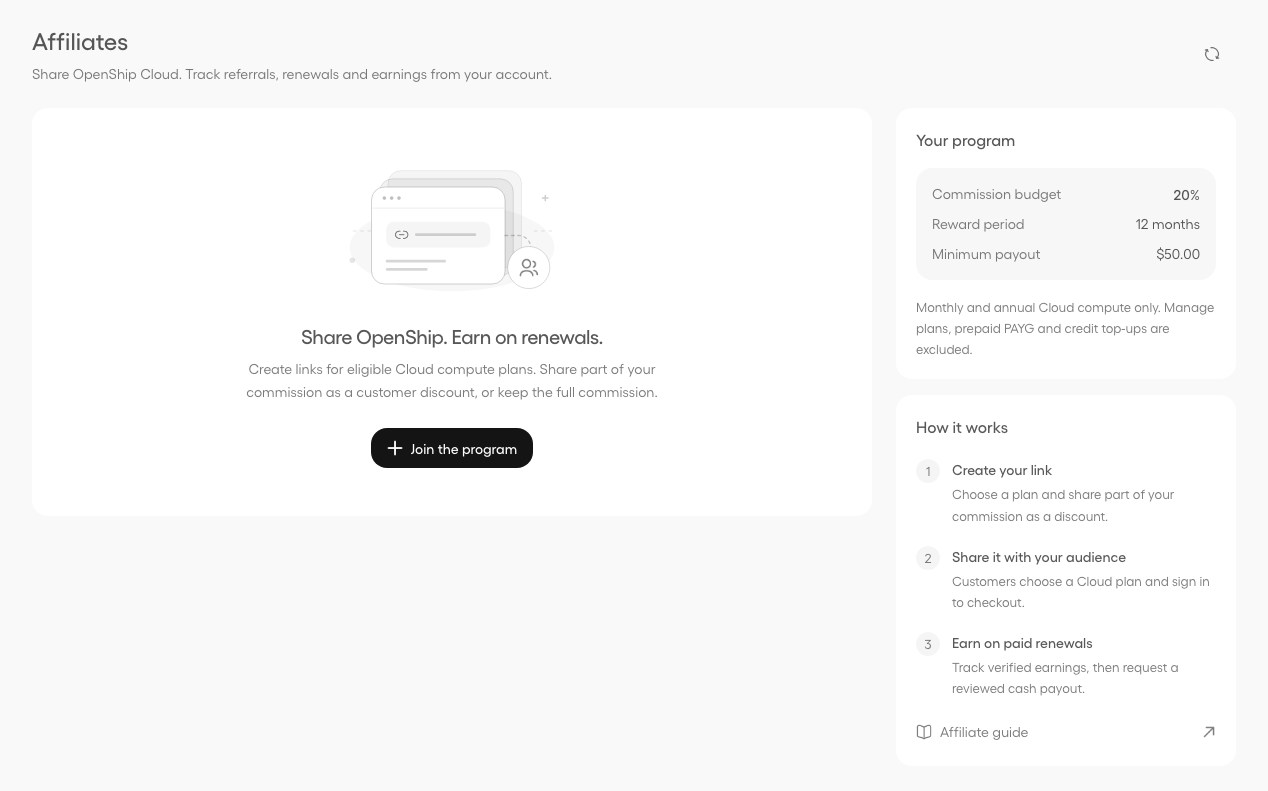
Screenshots in this guide use example customers, links and balances.
Links and discounts
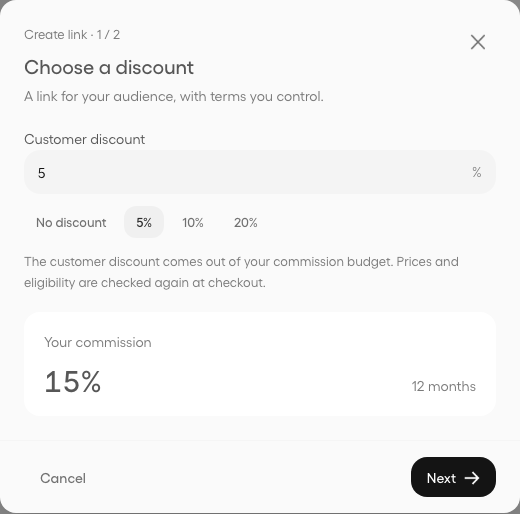
Select Create link. In the first step, use a discount shortcut or enter a percentage. The preview shows your remaining commission. Choose Next to name the link and review the available plans. The customer discount comes from your commission budget. For example, a 20% budget with a 5% customer discount leaves you 15% of the eligible subtotal. Your program's actual percentage and reward duration appear before creation.
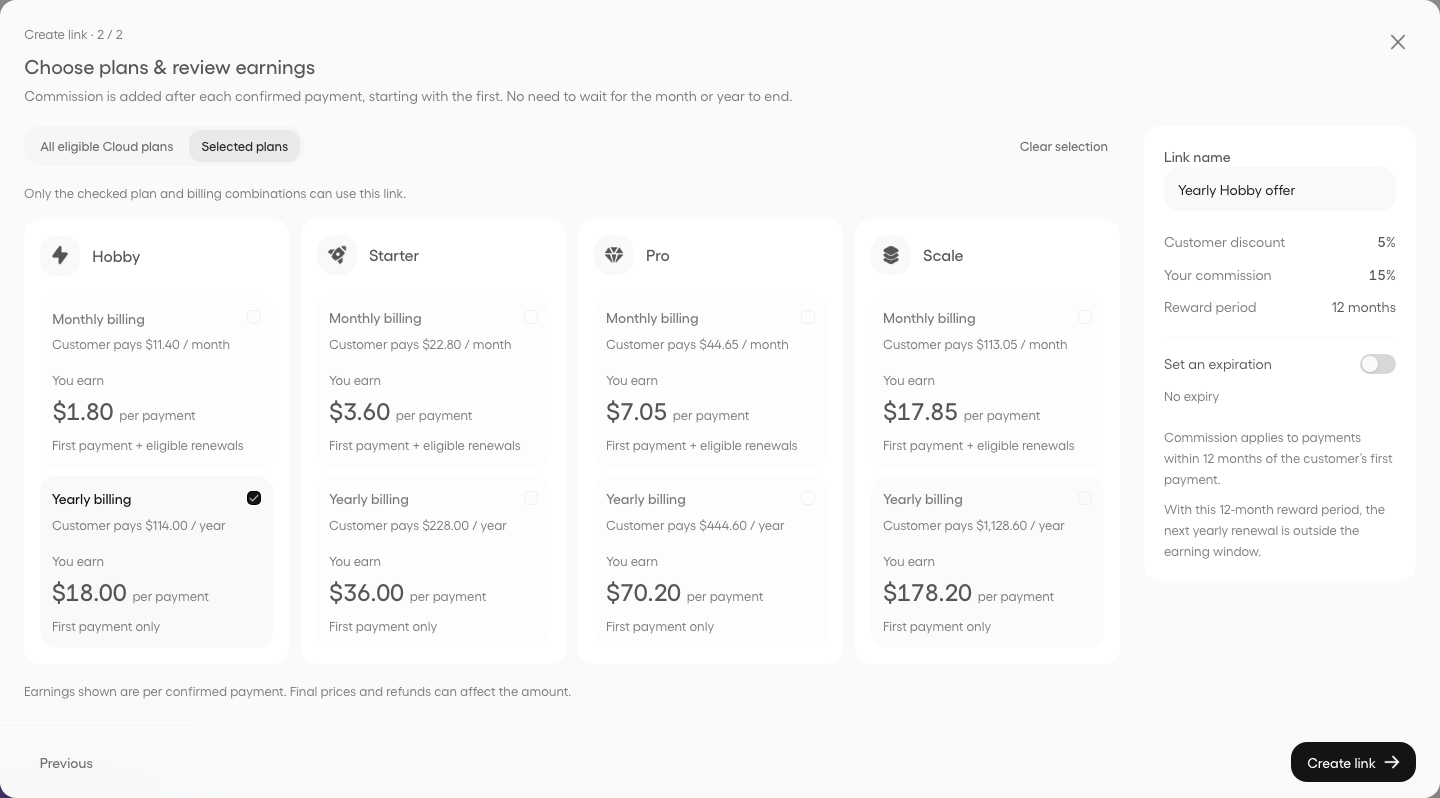
In the second step, All eligible Cloud plans includes current and future eligible plans and intervals. Choose Selected plans to limit the link. Check each monthly or yearly option independently; for example, clear the selection and check only Hobby · Yearly for a yearly Hobby-only link. At least one combination must be selected. These restrictions are saved and enforced by the checkout service.
Each plan has a card with independently selectable monthly and yearly options. The whole option is clickable. It separates the customer's monthly or yearly charge from your commission per confirmed payment. Earnings begin with the first payment; there is no wait for the month or year to end. This is when earnings are credited, not when a cash payout is sent. Link name and terms sit beside the cards on wider screens. Yearly amounts cover the full annual charge, not a monthly equivalent. The figures are estimates before refund adjustments; checkout verifies current prices.
Expiration is off by default. Enable Set an expiration to choose a future date and time. This deadline stops new referrals from the link; it does not shorten existing customers' reward periods. The reward period starts with each customer's first eligible payment, independently of when you create the link. Only paid renewals within that reward period earn commission. For example, a 12-month reward period covers the first annual payment; the renewal a year later falls outside it. The cards show First payment only when the next renewal is outside the program's window, and First payment + eligible renewals otherwise.
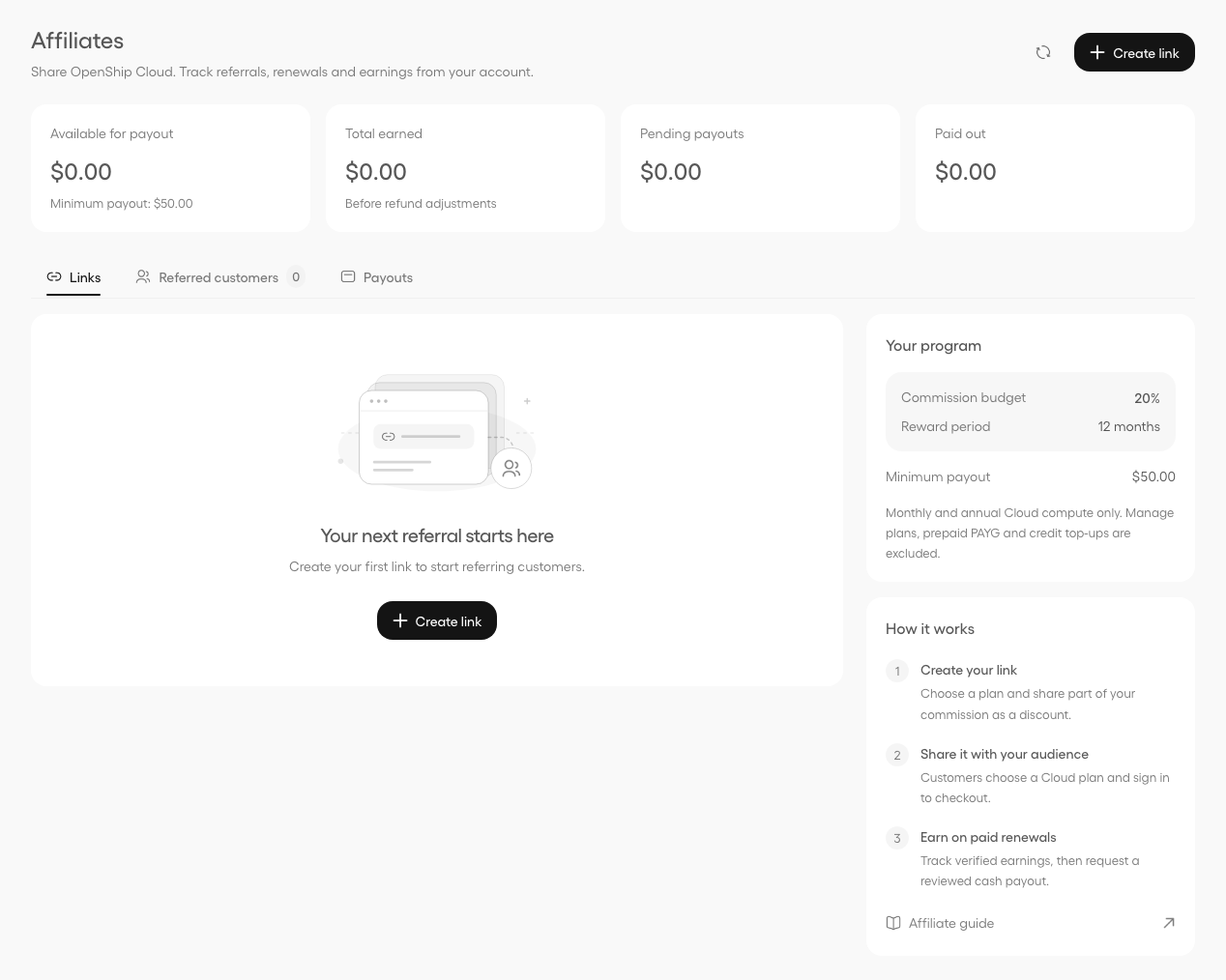
Your links appear in the Links tab, with their status, terms and copy actions. If you have no links yet, the illustrated empty state offers Create link directly.
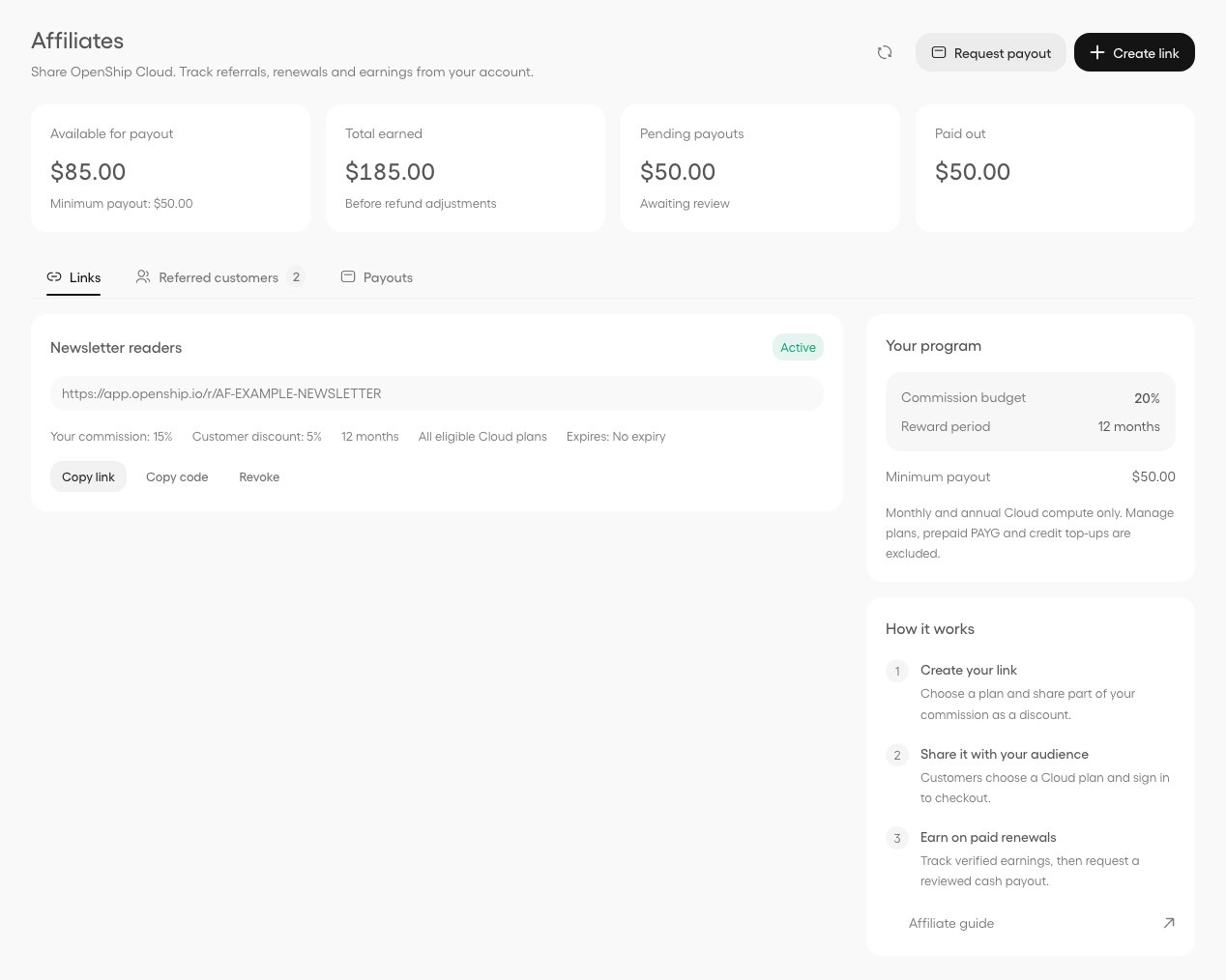
Share the link or code. The referral page shows eligible Cloud plans immediately. The customer selects a plan and billing interval, then signs in or creates an account to continue to checkout. The selected plan and referral are preserved; there is no second plan-selection step. They can remove the referral before paying. Revoking a link stops new referrals; accepted checkouts and existing referrals retain their original terms. Create a new link to use different terms.

Only qualifying monthly and annual Cloud compute plans participate, starting at $10 per month equivalent. Manage, prepaid PAYG and credit top-ups are excluded. You cannot refer yourself or a workspace you belong to.
Customers and earnings
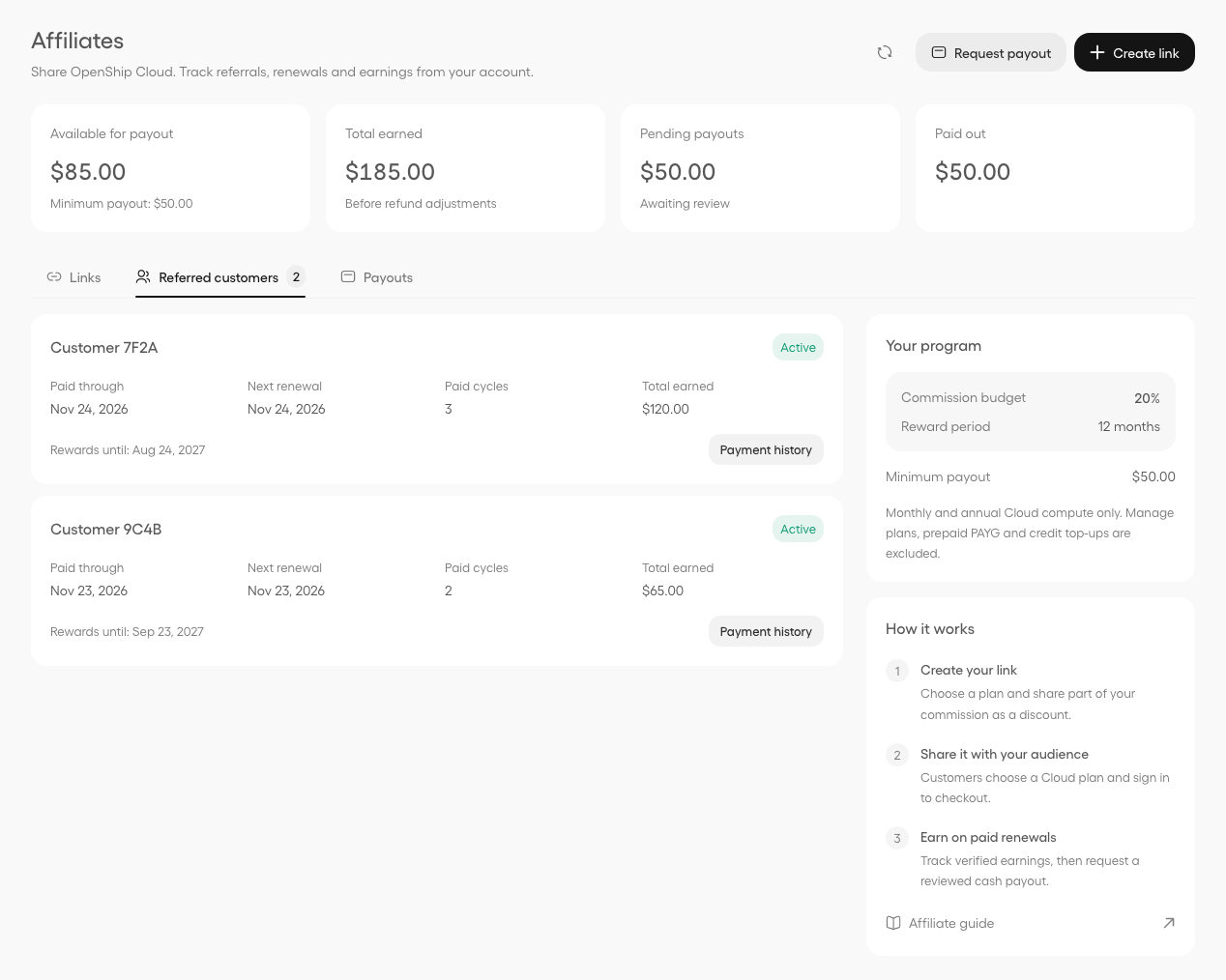
The customer list shows anonymized customers, paid periods, next renewal dates, expiry and payment history. Earnings are recorded only after payment verification and adjusted for refunds. Renewals earn commissions until the original reward period ends; changing plans does not restart that period.
Cash payouts
The default minimum is $50. Your current minimum appears beside your available earnings; OpenShip may approve individual terms.
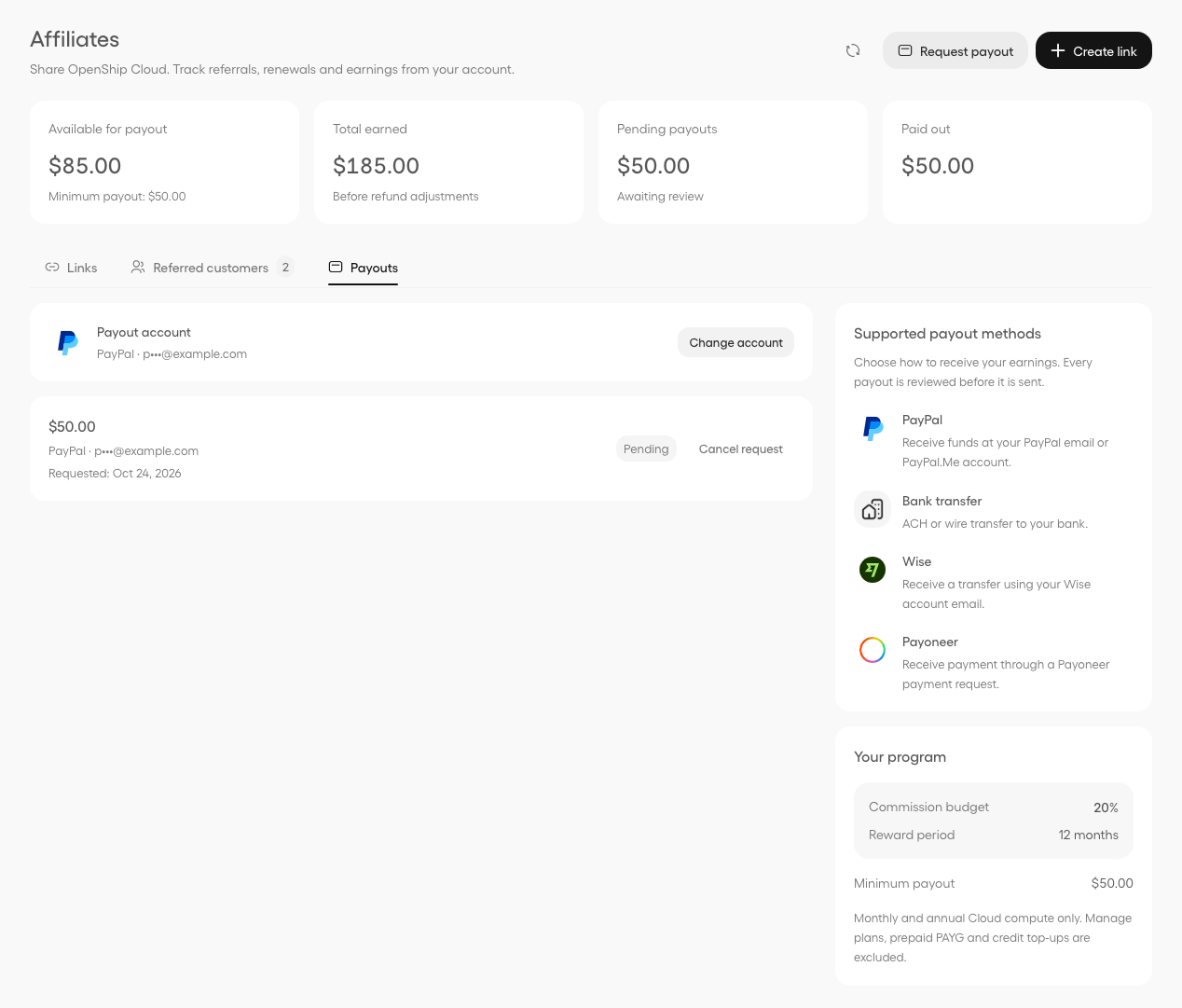
Open Payouts → Add payout account before requesting a payout. Supported manual destinations are PayPal, bank transfer, Wise, and Payoneer, shown in the right column. Select a payment method's logo card, then enter the account holder name and the destination's details beside it. PayPal accepts an email or a PayPal.Me link. Wise and Payoneer use the account email. Bank transfers require bank country, bank name, account number or IBAN, routing number or SWIFT/BIC, and the account holder's address.
Bank transfer account details
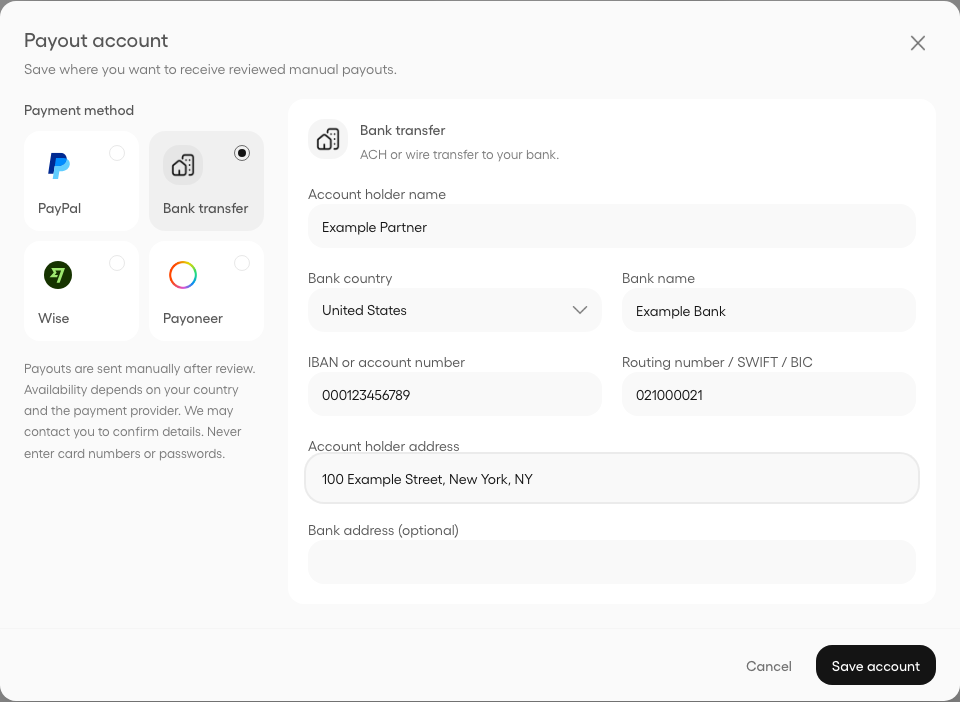
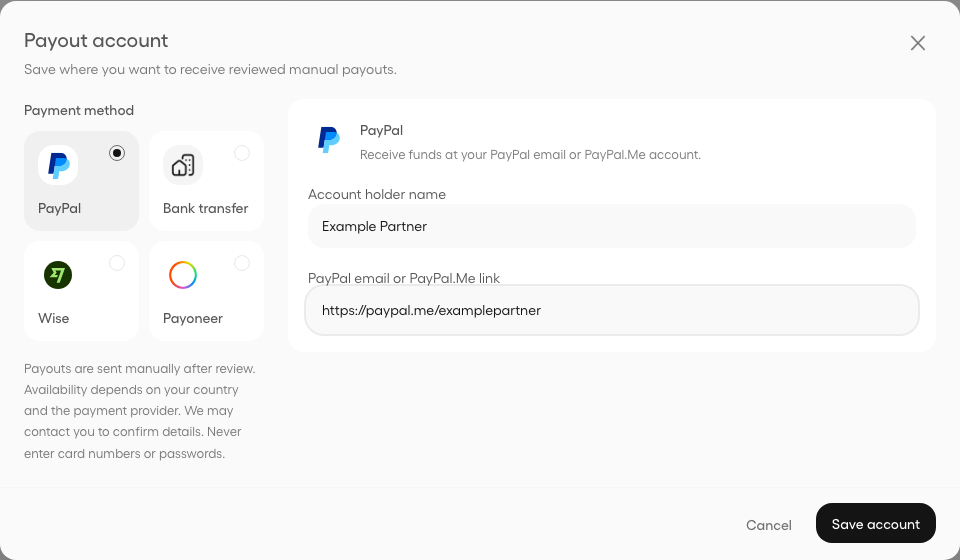
This saves a manual payout destination; it does not sign in to the payment provider or authorize a payment. Availability depends on the country, destination and provider. OpenShip may contact you to verify details or arrange a Payoneer payment request. Bank details are encrypted at rest; account and history views show a masked summary. Never enter payment card numbers, CVV codes or provider passwords.
Once your available earnings reach the minimum, Request payout appears at the top of the page. Open it, review the amount and submit. Pending requests reserve funds and can be canceled before review starts. OpenShip reviews each request and contacts you through your account email to verify payment details. The Payouts tab shows pending, under review, paid, rejected and canceled requests.
Every request keeps the destination saved when it was submitted. Changing your saved account affects new requests; it cannot redirect a request already awaiting review. Legacy requests without a saved destination are resolved with support.
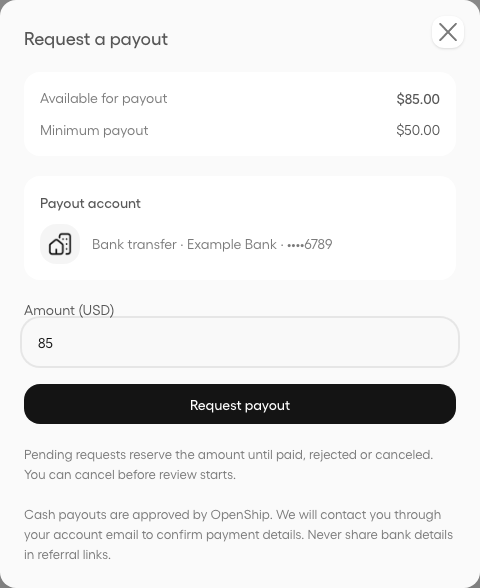
Available, pending and paid amounts are shown separately. Refunds can reduce the available balance and prevent a pending payout from being approved. These are cash requests, not automatic Cloud-credit purchases. Never share banking information in a referral link or code.