Assistant
Work with your OpenShip apps using your own agent and the same permissions as any MCP connection.
The built-in Assistant uses Mindwire with your installed Claude Code or Codex agent, displaying each harness’s native name and icon. It is off by default for every account and workspace in Desktop, self-hosted OpenShip, and Cloud.
Desktop runs Mindwire on your computer and can reuse your local agent sign-in. Self-hosted installations use a private profile on the OpenShip host. Cloud uses your existing paid Cloud instance, or a connected server you choose. A single paid instance is selected by default; no separate SSH server or additional instance is needed. Mindwire runs there, never on the shared Cloud control plane. Installing and using that host requires administration permission and its normal active access. Each account, workspace and server has its own agent profile. Cloud and self-hosted profiles do not import an operator's native agent credentials.
Enable the assistant
- Open AI Agents in the sidebar. Preview deployment, investigation and automation examples, then select Enable Agents. On Cloud, your paid instance appears automatically. Choose a destination if you have several.
- Review the permissions dialog without leaving Assistant. It reuses the same resource picker, permission templates and consent flow as MCP authorization. Choose the resources and operations the assistant may use. Start with Read-only to inspect apps without allowing changes.
- Select Enable assistant to approve the displayed permissions. Canceling leaves the assistant off.
- Open the top-right ⋯ → Connections menu to check your installed agents and connect an account. You can also manage connections from Settings → Assistant. Mindwire can reuse a compatible local sign-in or show the agent's available sign-in methods. Agent credentials stay in Mindwire's private profile on the selected host. OpenShip installs the matching Mindwire daemon after opt-in. On a managed Cloud instance, select Set up Codex or Set up Claude Code to prepare the agent, then connect your account. Installation progress appears here, with a retry action if it fails. On Desktop, self-hosted or connected SSH hosts, install Claude Code or Codex on that host before connecting it.
- Choose a connection and model, then send your first message.
Enabling the feature grants access only after you complete MCP consent. It does not install access to a workspace you did not authorize. Assistant settings → Review permissions opens the same editor used in Settings; it is not a separate assistant permission system.
Investigate an app issue
Select Investigate with AI in a failed deployment's header or a failed app's setup page. Open app issues in Monitoring or the app's Health tab offer Fix with AI. The assistant opens with the relevant app, deployment or incident IDs already in an editable request. Review it, add any useful details and select Send to begin.
If the assistant is off or has no connected agent, complete the normal setup first; the request stays ready. Investigation uses your existing approved permissions and asks the agent to inspect status and logs before suggesting a fix. Fix with AI asks it to apply an appropriate fix within its approved access and verify the result. Opening the shortcut grants no additional access and does not run a deployment or repair.
The shortcut belongs to the account, workspace and Cloud connection where you opened it. After switching workspace, return to the original issue to start an investigation. Logs and error details are read through the authorized tools, not included in the link.
Choose AI health report in the Monitoring header for an editable request to review the workspace's apps, deployments, services and accessible servers. The report summarizes current health, issues, evidence and next steps, including any stale data or access limits. It is a read-only request and starts when you send it.
Agents for scoped work
Open AI Agents in the platform sidebar. The general OpenShip assistant is pinned first in the 340px right-hand switcher, followed by specialists and an expandable Automations group. Agents use the same selected host, AI connections and MCP permissions as the assistant.
Select an agent to reopen its last visited conversation, or its latest task when there is no saved selection. Agents without chats open an empty composer. Selecting an automation shows its run history and links to the original investigation chats; Edit settings or any step opens the same validated form inline. The header's navigation icon collapses the switcher on desktop and opens it as a right drawer on mobile.
Use the plus beside AI Agents to create a specialist. Manage agents opens the existing configuration drawer, keeping your current conversation and draft in place. Edit agent & access expands it to the available screen width for its instructions, model and permissions. Close it or press Escape to return.
- Select Create agent, or start from Logs investigator, Security reviewer or Deployment assistant.
- Choose from 16 flat character avatars beside Name, then give it a name, purpose and working instructions. Select a connected account or a custom API model from your connections. Its avatar appears in the switcher and automation setup. The look does not set its job or permissions. Agents without a chosen character get a consistent individual look automatically.
- In Assigned access, select the specific apps, servers and repositories it needs. The same permission editor controls operations and repository paths. Read-only is the default; instructions cannot expand these permissions.
- Save, then select Open chat to work with it in the main assistant. Opening a chat starts no work until you send a message. The header shows the agent's name and an Agent label. General chats show OpenShip assistant · General.
Each task gets one conversation. Open it from the agent's recent chats to inspect tool calls, results and progress. You can send a follow-up while it works, stop it, or continue after it finishes. A follow-up continues the same conversation. A new task starts a separate conversation. Changing the agent's instructions, model or access stops its current tasks and pauses attached automations for review. Start a new task with the updated configuration, or review and enable the flow again. Changing only its avatar keeps existing conversations and automations running. Archiving stops its active work, pauses attached automations and preserves history.
Choose Put it to work automatically to attach an incident trigger to a specialist. Every incident creates a fresh task conversation. Investigations and follow-ups keep read-only access to that incident's app; proposed changes use the existing review and deployment pipeline. Optional notification channels use your existing settings.
The general assistant can list, create and edit agents, assign tasks and prepare paused automations through the same API used by these controls. It can offer an inline activation review; Enable & continue enables the reviewed flows and resumes the conversation. The assistant cannot approve its own activation or remediation. Scoped agents cannot create more agents or acquire new permissions.
Agents require Mindwire bot protocol 9 on the selected host. This includes the application-managed tool boundary: saved profiles do not inject Mindwire management, scheduling or filesystem tools. Existing native sign-ins remain unchanged.
Conversations and tool results
Responses stream into the conversation. Tool activity appears beside the answer; open an activity item to inspect the result and request. Repeated calls stay grouped; use the call selector to inspect each one. Apps, servers, deployments, services and repositories can appear as inline cards with links to their existing OpenShip pages. Import on a repository opens the regular setup flow; review its configuration before deploying. These cards show the result when the tool ran, not a live monitor. Each action shows whether its tool call is running, completed, failed or stopped. Every deployment request keeps its own result and progress link. A completed restart does not imply that the app has recovered; check its health afterward.
Automation results appear as a compact, collapsed summary. Expand it to view the saved flows and their connected steps, then choose Review flow to open the editor. Repeated results for the same automation stay grouped. Opening a preview does not run or enable the automation.
Ask the assistant to connect a chat app and it can check existing connections and prepare the normal setup form. Connect Slack, for example, opens that form inside the conversation with the selected bot role and connection method. Enter bot credentials privately in the form, never in chat. Preparing setup creates nothing; saving still uses the existing workspace permissions and new connections start paused. Account linking continues through the normal permission review.
Platform guidance comes from the shared MCP workflow guides. The assistant can read the relevant guide and discover permitted tools without loading every tool description. Tools and guides do not expand its approved access. Replies format headings, lists, tables and partially received Markdown as they stream. Code blocks use syntax highlighting and have a Copy code action; the copy button below a completed reply copies its Markdown without tool results. Copy is available when that part of the reply finishes. Wide code and tables scroll inside the reply. Structured questions remain interactive. Remote images and raw HTML in replies are not loaded. Checking agent connections keeps the opening chat layout in place; you can write a draft while waiting, and sending becomes available after connection.
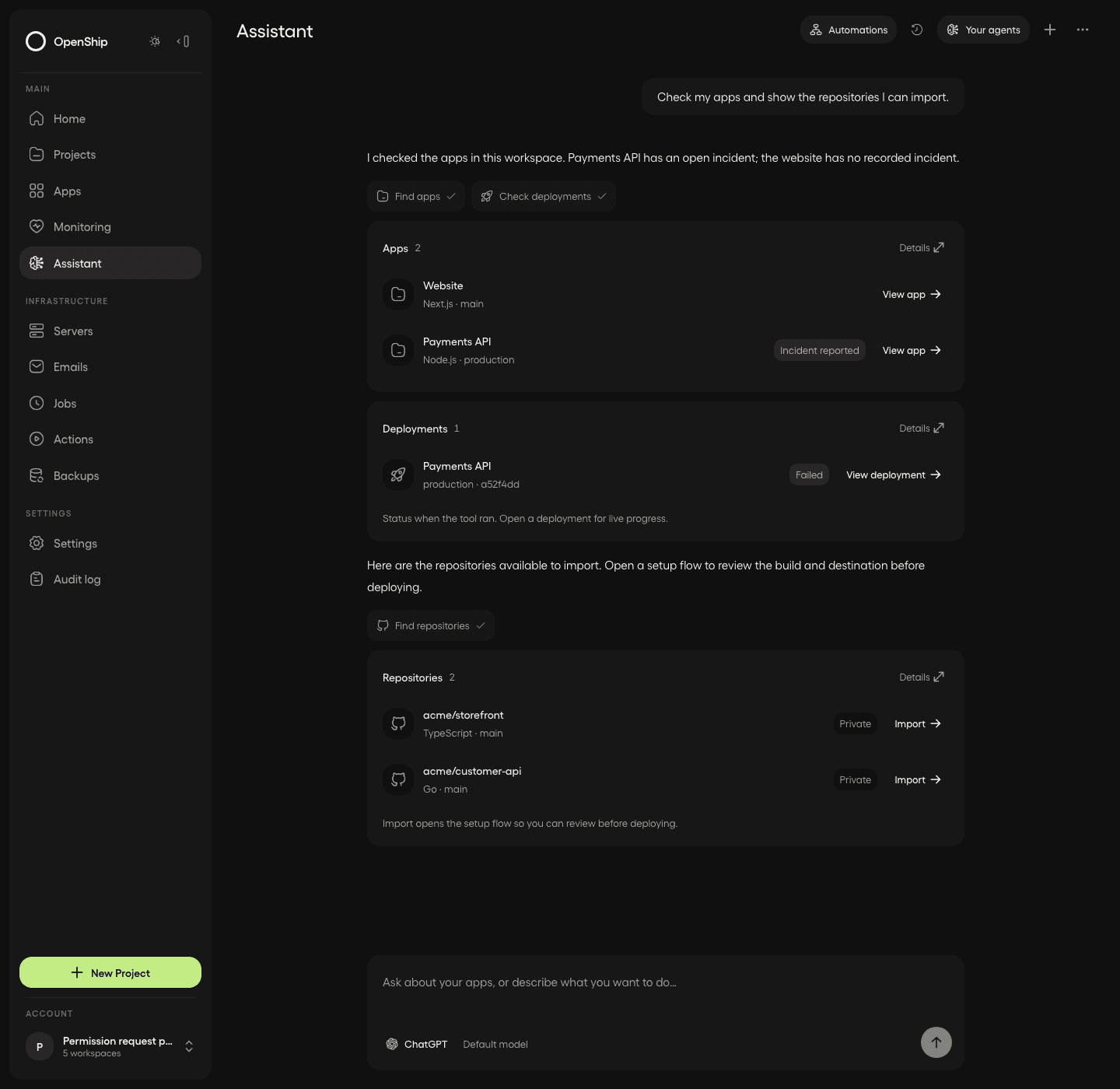
Example conversation with sample data. Tool details open on click; import links continue to the standard setup flow.
Use the Conversations button in the header to open a right-hand drawer with searchable history grouped by date. Opening Assistant returns to your last visited chat in the current account, workspace and host. Explicit conversation links and investigation shortcuts still open their own context. Conversation history stays in this drawer; the switcher contains agents and automations. Choose New chat to start fresh with the current agent. Use the model selector beside Send to switch models between replies in the same conversation. On desktop, Enter sends and Shift + Enter starts a new line; on a touch device, Enter starts a new line and the Send button sends your message.
With an image-capable agent, select Attach images, paste a screenshot, or drop images into the composer. Review or remove the previews before sending. PNG, JPEG and WebP are supported, up to four images, 4 MB each and 8 MB per message. Images travel to your connected model and remain in the conversation on the selected agent host. Image uploads do not grant file or shell access.
Expand Thinking to follow reasoning provided by your agent. New text fades in as it arrives, and tool steps show their current state. Scrolling up pauses automatic following; Latest messages takes you back to the response. Reduced-motion settings disable these animations.
If the agent asks a structured question, select Answer, fill in the requested details, and send it. Message-based questions remain answerable after the turn completes. Accepted answers remain resolved when you reload. Stop cancels the current turn; deleting a conversation stops its turn and removes its history on the selected host.
Requests and authorized tool results are sent to the provider behind your agent connection. Your provider's account, billing, and data policies apply. Mindwire stores transcripts on the selected host; OpenShip stores conversation ownership and request receipts so interrupted browser requests do not repeat work.
Use your assistant in chat apps
After enabling Assistant, connect it from Settings → Chat apps. A workspace admin must allow assistant chats on the connector, and each linked person selects Connect my assistant to choose their own connected agent and model. Both switches start off. See the chat apps guide for Slack, Discord, Telegram and Teams setup.
Send /openship ask <message>, /openship new or /openship stop. Plain bot
messages also work where the provider setup supports them. Conversations remain
private to their sender and separate for each channel/thread. Replies include an
OpenShip link for full history, structured questions and permission review.
Continue these conversations from their originating chat app; start a new dashboard
chat to work here instead.
Chat uses the same Assistant permissions, MCP tools, native agent profile and normal deployment operations. It does not inherit the bot installer's access or model account. Direct deployment commands continue to use their separate Chat grant. Changing your Assistant permissions requires reconnecting it for chat. Disconnecting chat access does not sign out the native agent or disable your dashboard assistant.
Permissions and safety
Every product operation goes through the normal /api/mcp endpoint, including
its tool discovery, authentication, workspace scope, permissions, deployment
flows, and audit rules. Assistant cannot grant itself access, create another
assistant connection, or call its own control endpoints through MCP.
The private agent profile excludes OpenShip's service credentials, SSH agent, preload hooks, and global agent settings. Native shell, file, browser, plugin, and additional MCP tools are restricted. Unsupported installed agents fail closed until their required controls are available. This restricts the agent's tool surface; it is not a separate OS sandbox for an untrusted agent executable.
Write access authorizes the corresponding MCP operations. As with any MCP client, review the scope before approving it; choosing write access is not a promise of an additional confirmation dialog for every operation.
If a task needs more access, the agent can show an Access requested card with the reason and the resources or actions it needs. Select Review permissions to stop the current turn and open the shared editor with your current access. Choose what to allow and save, or cancel to keep your existing permissions. The request itself grants nothing and never preselects broader permissions. After changing access, start a new conversation and ask the agent to continue your task; OpenShip does not automatically replay the previous request.
This works in Desktop, self-hosted OpenShip and Cloud, using the normal
get_permissions_access_request tool. External MCP clients can use the same
read-only tool and direct you to Settings → MCP to review their connection.
Clients using a personal access token are directed to Settings → API tokens
instead; only the account holder can issue a replacement with a different scope.
The tool cannot change another account's permissions, approve native shell or
file access, or grant access that you do not hold.
Changing permissions invalidates the conversation's prior access context. The old access request is marked as changed. Choose Continue in new chat to keep your last request as an editable draft with your current permissions, then send it when ready. Saving access does not retry an operation automatically. Returning from another tab refreshes the conversation's access state. Revocation blocks subsequent tool calls and stops the active turn. An operation already accepted by OpenShip, such as a queued deployment, follows its ordinary lifecycle and is not rolled back by stopping the assistant.
Assistant access is workspace-scoped. Workspace grants, including full workspace access, do not grant instance-wide administration. Instance diagnostics, controller directory browsing and other instance-only tools are omitted from its tool catalog. The assistant can use permitted app, deployment and server tools to investigate your workspace; it cannot inspect the shared Cloud control plane or other tenants.
Choose Assistant settings → Disable assistant to revoke its MCP connection and stop its active turns. Saved history remains private to the original account and workspace. A new authorization requires new conversations; old context cannot be resumed under different permissions.
Assistant settings
Open Settings → Assistant to see the selected host, manage your Claude Code or Codex connection, review permissions, or pause all automations. Connection and permission dialogs reuse the controls in Assistant and MCP settings. Pausing automations leaves your ordinary conversations available.
Automations
Open Automations from the top-right button in Assistant to connect an app event to an investigation and a specific response. Flows are personal to your account and workspace. New flows start paused; automatic actions require a separate, explicit approval.
You can also ask the assistant to prepare and enable flows. It offers Review & enable directly in the conversation, including multiple flows together. Expand the review to see the saved apps, triggers, response permissions and run limits, then select Enable & continue. OpenShip enables those exact saved versions using your current access and continues the conversation automatically. You do not need to switch to each editor or send a separate confirmation message. If a flow changes during review, refresh and review it again. Automatic fixes still need your explicit consent, and enabling a flow does not resume a global pause.
Choose Create automation, then a trigger to open the full-page editor. Select a saved flow's row to edit its configuration. Run history shows past investigations; the options menu contains Pause all flows and Assistant settings. The flow shows four connected settings rows in execution order. Select Trigger, Investigate, Respond or Notify to expand its fields in place. Edits stay in place when switching or collapsing rows; Save changes or Save paused in the header saves the flow. In AI Agents, editing stays inline. Run history returns when you save or cancel. Cancel leaves the saved configuration unchanged.
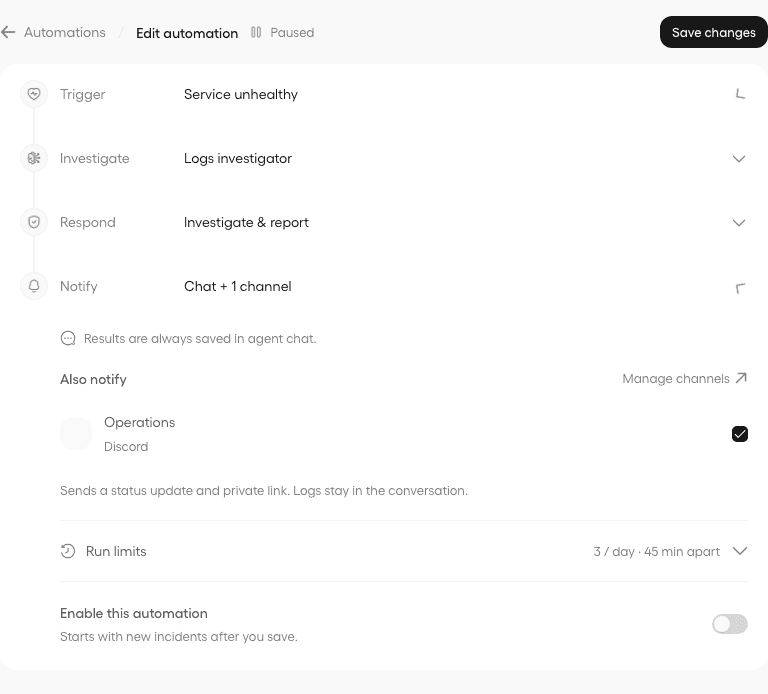
Example flow using a sample app. All four steps use the same saved configuration.
- Trigger: choose an app and either Deployment failed or Service unhealthy. Health triggers use confirmed incidents from OpenShip's existing monitor, including outages and crash loops. Intentional stops and normal deployment transitions do not create an automation incident. If the workspace has no apps, choose Create an app from the dropdown. Setup opens in a new tab, preserving your flow; return to refresh the app list.
- Investigate: select a specialist with access to this app, or create one in the agent drawer without leaving your flow. Its saved instructions, connection and model follow every run. Choose Edit agent & access to configure its model, custom API or resource permissions. Optionally grant source reading for the app's connected repository and add guidance specific to this flow. The investigation receives temporary, read-only access through the normal MCP endpoint.
- Respond: choose a mode and the permissions this flow can use. These are a subset of both your workspace access and the existing Assistant authorization. Review Assistant access opens the same permission editor used by Assistant.
- Notify: results appear in the agent conversation. Optionally select your existing notification channels, including the OpenShip inbox, and set run limits. Enable the flow when you are ready, or save it paused.
| Mode | What happens |
|---|---|
| Investigate & notify | The agent investigates and reports its findings. No deployment action is allowed. |
| Ask before fixing | If evidence supports an allowed action, OpenShip asks you to review and approve it in the agent conversation or Run history. Approval expires after one hour. |
| Fix automatically | You choose a set of allowed actions for the app. A run may apply one supported action only when the investigation recommends it and the incident is still current. |
Choose the permissions that match the flow:
| Permission | Behavior |
|---|---|
| Restart services | Restarts the affected app’s active deployment after a confirmed health incident. |
| Redeploy the app | Rebuilds the current commit through the normal deployment pipeline. |
| Commit a code fix | Publishes proposed file changes in one commit on a new repository branch. |
| Open a pull request | Publishes that commit and opens a draft PR for review. |
Code fixes require the app’s connected GitHub repository and approved source read and write paths. The agent investigates with read-only access, then proposes exact file contents against an inspected base commit. Review shows the saved proposal; approval cannot substitute a later model response. At publication, the normal GitHub operation checks live repository and path permissions again, refuses a changed base, and creates a new branch. It never updates or merges the existing app branch. Up to 10 regular text files and 256 KB total are supported; symlinks, submodules and file deletion are excluded. Repository CI may run on the new branch or draft PR. A lost response is not retried automatically; inspect GitHub if publication is uncertain.
App recovery uses normal repository, billing, deployment and audit checks. Source fixes use the same GitHub operation available to ordinary MCP and SDK clients. Flow permissions do not enable arbitrary shell access, package installation or environment-variable changes.
Results and notifications
The agent conversation shows findings, run progress and the proposed action. Review and approve from there or from Run history using the same review screen. An accepted restart or redeploy enters Verifying health. OpenShip reports Healthy only after fresh runtime observations confirm that deployment's workloads are healthy. Missing evidence, timeouts and failed actions show Needs attention; a failed action pauses its flow rather than repeatedly trying to repair the app.
A published code change shows Completed and links to its commit or draft PR. It does not claim the application recovered. Review the changes and CI results before merging and deploying.
Selected channels receive a status update and an authenticated link to the conversation. With no channels selected, the findings remain in the agent conversation. Raw logs and AI-written findings are not copied into messages to external channels. Manage delivery choices in Settings → Notifications as usual. Reading the investigation still requires the original account and workspace.
Limits and access
- The default limit is 5 investigations per day, with a 30-minute cooldown. You can choose 1–20 runs per day and a cooldown of 10 minutes–24 hours.
- One incident produces one run, even if its notification is retried or the health incident escalates. Only one investigation/action is active per app.
- Investigations stop after 10 minutes. Action verification waits up to 15 minutes. Provider usage and billing apply to your connected account.
- Actions require your current app access, an unchanged Assistant authorization, and the original deployment/incident still being current. Changes to a flow or its permissions invalidate pending approvals. A lost action response is never replayed automatically.
- Pausing cancels pending investigations and approvals and revokes their temporary access. An action already accepted by the normal deployment pipeline follows its usual lifecycle. Resuming starts with new incidents, not incidents from the pause.
- Logs and authorized tool results may be sent to your connected AI provider. External notifications contain a private link, not those results. Treat provider data policies as part of the decision to enable a flow.
The API and selected assistant host must remain online. Desktop automations cannot run while your computer sleeps. The existing Assistant automations system job processes queued events every 15 seconds by default; the health monitor's own confirmation period still applies. Native installations must have jobs enabled, and disabling the system job stops processing.
Cloud retains the same tenant and server checks as interactive Assistant: the agent runs on your chosen customer server, and access is rechecked before work and before an action. It never runs on the shared control plane.
Try a flow safely
Use a disposable app, connect an agent, and enable Deployment failed → Investigate & notify. Trigger a deliberately failing deployment. Open Run history and follow the agent conversation. If you selected notification channels, check those too. Then try Ask before fixing, inspect the evidence and explicitly approve a same-commit redeploy. Use a confirmed health incident on an active test app to exercise restart. Automatic repair is optional; leave it off until you have reviewed those results.
Availability and troubleshooting
- If AI connections says an agent is unavailable, install or update its native CLI on the selected host, then select Refresh in that dialog. OpenShip checks the required tool restrictions before making it available.
- Reconnect in AI connections if the provider rejects a saved sign-in.
- If the local API or agent restarts mid-turn, OpenShip checks the prior run and settles it before accepting another message. It does not automatically replay the prompt with new permissions.
- Cloud requires an existing running server; enabling Assistant does not buy, resume or resize a server. Remote agents call the normal OpenShip MCP endpoint over HTTPS. The daemon itself listens on loopback and is reached through the existing SSH tunnel or managed VM proxy, not a new public port.
- Remote daemons remain on the selected host when a control-plane connection closes. This does not stop the server or disconnect the agent account. Existing server workloads are unchanged.
- A second Cloud API replica can read or stop the same conversation. Active turns hold a renewable database lease. Recovery settles an expired turn before a new message is accepted; accepted operations are never automatically replayed.
- Supported hosts are Linux and macOS on ARM64 or x64. Codex requires Node.js on the assistant host for the scoped protocol guard. Windows support is not enabled. External MCP clients remain available.
- Local profiles use
OPENSHIP_DATA_DIR/assistants, falling back to~/.openship/assistants. For a containerized self-hosted API, persist that directory and install the agent CLI in the API environment. Remote profiles live under~/.openship/assistantson the selected server.